Shopping for a laptop can feel like trying to decipher a technical manual written in a rush by someone who ate a dictionary.
You pop online just wanting a solid machine to type up papers, handle daily work, or binge your favorite shows, and within five minutes, you are drowning in a sea of tech jargon. Specs boast about NPU neural engines, OLED refresh rates, thermal throttling limits, and integrated graphics. To make matters worse, dropping a chunk of your hard-earned savings on a fancy laptop doesn’t automatically mean you’re getting a setup that actually fits your day-to-day routine.
If your daily life revolves around typing documents, firing off emails, and watching YouTube videos, buying a high-powered workstation is just burning money for fun. But if you try editing 4K footage, coding complex projects, or playing modern games on a dirt-cheap budget machine, you’ll end up wanting to throw it straight out the window within a week.
Here is an honest, down-to-earth guide to picking the right computer without overpaying for flashy features you’ll never touch.
The Reality-Check Cheat Sheet
Before you let flashy store displays or aggressive marketing get in your head, match what you actually do every day against this practical specs breakdown:
| Your Daily Workload | Ideal RAM | Recommended Storage | CPU / GPU Focus | Real-World Battery Goal | Realistic Weight |
| Casual Browsing & Streaming | 8GB – 16GB | 256GB – 512GB SSD | Basic Intel Core Ultra 3 / Ryzen 3 / Apple M-series | 8+ Hours | Under 1.4 kg |
| College & Daily Office Tasks | 16GB | 512GB SSD | Mid-tier Intel Core Ultra 5 / Ryzen 5 / Apple M-series | 10+ Hours (Crucial) | 1.2 kg – 1.5 kg |
| Heavy Multitasking & Coding | 16GB – 32GB | 512GB – 1TB SSD | High-tier Intel Core Ultra 7 / Ryzen 7 / Snapdragon X | 7+ Hours | 1.4 kg – 1.8 kg |
| 4K Video Editing & Design | 32GB+ | 1TB – 2TB SSD | Top-tier CPU + Dedicated GPU (NVIDIA RTX series) | 4 – 6 Hours heavy load | 1.8 kg – 2.4 kg |
| Dedicated Modern Gaming | 16GB – 32GB | 1TB+ SSD | Dedicated GPU + High Refresh Rate Display | 2 – 4 Hours (Plugged in) | 2.0 kg – 3.0 kg |
Finding Your Match: Real-World Use Cases
Identify Main Need ➔ Prioritize Battery & Screen OR Raw Power ➔ Check Ports & Upgrade Room
1. For Students: Portability Beats Benchmarks
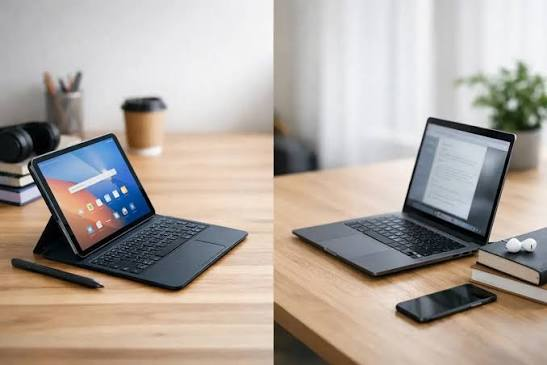
When you’re lugging a laptop around campus all day—racing from early morning lectures to library sessions and coffee shop hangs—high-end benchmark scores mean absolute zero. What actually matters is how heavy your bag feels, whether the battery survives the day, and if the keyboard makes typing long papers a breeze.
- What Really Matters: A crisp, bright screen, a body under 1.5 kg, and a battery that easily sails through an 8-hour day so you aren’t hunting for open wall outlets on the floor.
- Real Talk: Don’t buy a heavy 2.5 kg gaming laptop for college just because you think you might play games on Friday nights. Hauling a heavy brick and a giant power adapter to every single class will get old incredibly fast.
2. For Office Work & Remote Jobs: Prioritize Daily Comfort

If your typical workday consists of fifty open Chrome tabs, back-to-back Zoom calls, messy spreadsheets, and endless Slack messages, balance is key.
- What Really Matters: 16GB of RAM is the sweet spot to keep your machine from lagging when switching tasks. Pay extra attention to webcam quality (1080p minimum), mic clarity, and how comfortable the keys feel under your fingers.
- Real Talk: You touch the keyboard, trackpad, and screen every single minute you use your machine. Pairing a blazing-fast processor with a mushy keyboard and a dim, glossy screen guarantees a miserable work experience.
3. For Creators & Editors: Color Accuracy and Storage Win
Photographers, video editors, and graphic designers need hardware that won’t choke when rendering big files, processing RAW photos, or exporting heavy projects.
- What Really Matters: Look closely at display specs. You want a screen with 100% sRGB or DCI-P3 color accuracy so your work doesn’t look washed out on other devices. You’ll also want a dedicated graphics card (GPU) and at least 1TB of fast SSD storage.
- Real Talk: High-res 4K video files devour storage space terrifyingly fast. If you can’t afford a laptop model with a giant internal drive built in, make sure it has high-speed Thunderbolt or USB4 ports so you can edit directly off external drives.
4. For Gamers: Cooling Systems and GPU Are Everything
Gaming laptops make no secret of their trade-offs: they sacrifice thin builds, quiet fans, and long battery life in exchange for raw power.
- What Really Matters: The dedicated Graphics Processing Unit (GPU) is the heart of your rig. Pair it with a display featuring a high refresh rate (144Hz or higher) so fast-paced action looks buttery smooth.
- Real Talk: Always look up independent reviews that test actual fan noise and thermals. A laptop can boast impressive specs on paper, but if the cooling system is garbage, it will get blazing hot and throttle performance after twenty minutes of gaming.
Operating Systems: Which One Suits You?
- Windows: Maximum software compatibility, endless hardware choices at every budget level, and the undisputed home for PC gaming.
- macOS (MacBook Air / Pro): Unmatched battery efficiency, whisper-quiet performance, and premium build quality—ideal for mobile workers and creators.
- ChromeOS (Chromebooks): Ultra-budget-friendly, straightforward, and simple. Perfect if your daily life lives entirely inside a web browser and cloud apps.
5 Rookie Buying Mistakes to Avoid
- Cheaping Out on RAM to Get Extra Storage: You can easily plug in an external drive or use cloud storage when space runs low. You cannot fix a machine that lags constantly because it’s stuck with 8GB of non-upgradable RAM.
- Ignoring the Built-in Port Selection: Thin laptops look sleek in photos, but living that constant “dongle life” where you need three adapters just to plug in a basic USB flash drive or HDMI cable gets annoying fast.
- Falling for “Big Slash-Through Price” Clearance Traps: An older, outdated laptop marked “50% OFF!” is often still overpriced compared to a modern mid-range machine. Look at the actual generation of the processor, not just the slash-through discount price.
- Skipping Display Brightness Specs: If a screen’s brightness is rated below 250 nits, it will look washed out and dim in bright rooms or near windows. Aim for 300+ nits minimum.
- Overpaying for Overhyped AI Features: Don’t buy a laptop just because it has a dedicated AI key or claims to run local neural workloads unless the actual software tools you use every day explicitly require it.
Understanding the Hardware Specs That Actually Matter
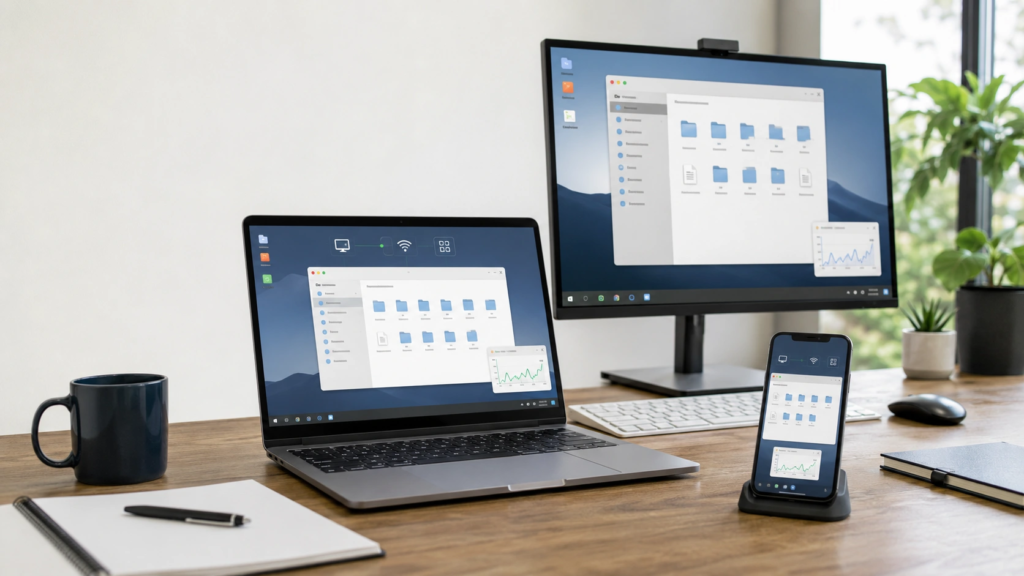
When you open a laptop product page, manufacturers throw endless acronyms at you. Here is what those components actually do in plain English:
- Processor (CPU): The EngineThe CPU handles every single calculation your computer makes. For basic web tasks, an entry-level processor is plenty. But if you run heavy applications simultaneously or process huge datasets, higher core counts prevent your system from turning into a frozen crawling mess.
- Memory (RAM): The Desk SpaceThink of RAM as your physical desk surface. If you have a tiny desk (8GB), you can only keep a notebook and one open book in front of you before things get crowded. A bigger desk (16GB or 32GB) lets you spread out dozens of documents, tabs, and programs at once without cluttering your workflow.
- Storage (SSD): The Filing CabinetThis is where your files, photos, and operating system live permanently. Modern laptops use Solid State Drives (SSDs), which are dramatically faster than old mechanical hard drives. Always aim for an SSD using NVMe technology for quick boot times and snappy file transfers.
- Graphics Processing Unit (GPU): The Visual WorkerIntegrated graphics share power with your main CPU and handle everyday tasks like playing HD videos or running light photo apps. A dedicated GPU is a separate processor built exclusively for rendering complex 3D graphics, heavy video effects, and high-framerate PC gaming.
Frequently Asked Questions
Is 16GB of RAM really necessary, or can I survive on 8GB?
For simple web browsing, typing documents, and watching videos, 8GB works fine. But if you keep dozens of tabs open while running music apps, chat tools, and spreadsheets in the background, 16GB keeps everything running smoothly without stuttering.
What is the best laptop setup for a college student on a budget?
A mid-range Chromebook works great if all your coursework happens inside a web browser. If you need traditional desktop software, a mid-tier Windows ultra-light laptop or an entry-level MacBook Air offers the best mix of battery life, weight, and long-term value.
Should I buy a gaming laptop if I only plan to do normal office work?
Generally, no. Gaming laptops are heavier, have loud cooling fans, and suffer from poor battery life when unplugged. Unless you actually play demanding modern games or render heavy 3D files, a clean productivity laptop is much nicer to live with daily.
How many years should a decent laptop last before needing a replacement?
A well-built mid-range or premium laptop bought today should comfortably last you 4 to 6 years for general workloads before hardware slowdowns make an upgrade necessary.